
How I Use ChatGPT to Create Custom Formulas for Conditional Formatting in Google Sheets?
We’ve all been there.
You’re working on a sheet — maybe it’s a task tracker, a sales dashboard, or an attendance register — and you want certain rows or cells to automatically change color based on conditions.
✅ Highlight overdue tasks in red
✅ Color high sales in green
✅ Flag missing entries in yellow
These color cues make a huge difference. They help you spot exceptions, clean your data, and make your sheet visually organized.
But here’s the problem…
😫 Writing Custom Conditional Formulas Is Not Easy
Even if you’re familiar with Google Sheets, writing formulas like:
=AND(B2="Pending", TODAY() > C2)
or
=ISBLANK(A2)
isn’t always straightforward.
You need to:
- Understand how logical functions like
AND(),OR(),NOT()work - Know how to reference columns and rows correctly
- Deal with time, text, or error values
- Fix broken logic when your formatting doesn’t apply
It’s frustrating, and sometimes it takes way more time than it should.
Now, every time I want to colorize my data based on logic, I simply describe what I want — and ChatGPT gives me the formula.
Yes, just like that.
And the best part? It works even if you don’t know anything about formulas. Just type your condition in plain English. ChatGPT translates it into the exact formula you need.
Let’s say I want to highlight all rows where the task status is anything other than “Done”.
So I ask ChatGPT:
“Write a custom formula for conditional formatting in Google Sheets to highlight rows where Column E is not equal to ‘Done’.”
ChatGPT replies:
=$E2<>"Done"
Perfect. I paste this into the “Custom formula is” field under conditional formatting and choose a background color.
Now all “not done” tasks are clearly highlighted.
Suppose I want to highlight tasks that are not done and also overdue.
I ask:
“Highlight rows if Column E is not ‘Done’ AND Column F (Due Date) is before today”
ChatGPT says:
=AND($E2<>"Done", $F2<TODAY())
And explains what each part means.
In less than 30 seconds, I’ve done what might have otherwise taken 10 minutes of trial and error.
Even if you have no clue about formulas — or even if you’re someone who writes them daily — ChatGPT helps you:
- Save time
- Avoid syntax errors
- Understand the logic
- Focus more on the what than the how
It’s like having a spreadsheet expert sitting beside you. And it doesn’t just work once — it’s helpful every time you want to colorize data differently.
If you want to explore this yourself, try feeding these prompts to ChatGPT:
- Highlight overdue tasks
“Write a formula to highlight rows where the due date in column D is before today and the status in column E is not ‘Completed’.” - Color high-value sales
“Give me a formula to highlight cells in column F where the sales amount is greater than ₹1,00,000.” - Mark missing entries
“Write a formula to highlight rows where any of the columns A to D are blank.” - Flag weekend dates
“Create a formula to highlight rows where the date in column B falls on a Saturday or Sunday.” - Highlight low stock items
“Write a formula to highlight rows where stock in column C is less than the reorder level in column D.” - Color cells with keywords
“Write a formula to highlight rows where the item name in column A contains the word ‘urgent’.” - Highlight after-hours times
“Highlight cells in column E where the time is after 6 PM.”
How to Apply the Conditional Formatting in Google Sheets?
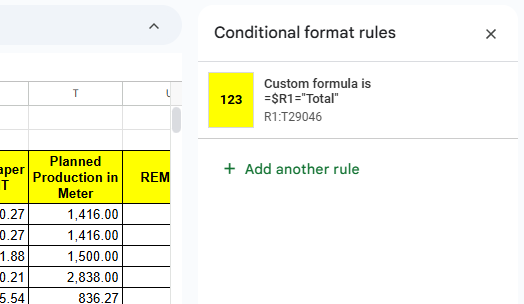
When ChatGPT gives you the formula:
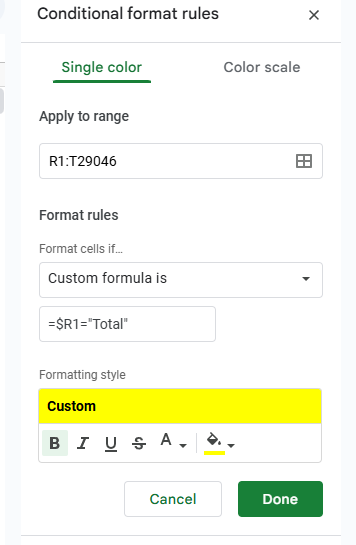
- Select the range you want to apply formatting to
- Go to Format > Conditional Formatting
- Under “Format cells if”, choose “Custom formula is”
- Paste the formula
- Pick a color and click Done
That’s it. Your sheet becomes smartly color-coded!
Conditional formatting is one of the most powerful (and underused) features in Google Sheets. But writing the formulas can be time-consuming and intimidating.
ChatGPT simplifies that process.
Whether you’re analyzing sales, tracking tasks, monitoring attendance, or managing inventory — just describe your goal, and let ChatGPT handle the logic.
📌 If you can visualize it, ChatGPT can help you colorize it.